
Cart is empty
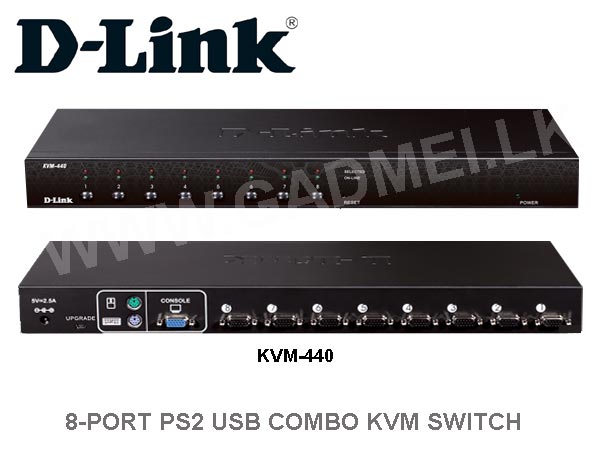

KVM COMBO SWITCH 8-Port PS2 USB Combo KVM Switch KVM-440
Special Price LKR 15000.00
Regular Price:
- Islandwide Delivery Available
The D-Link KVM-440 is a 1U rack-mountable KVM switch engineered for server management across PS/2 and USB platforms.
D-Link’s KVM switches are the ideal solution for data centers and other businesses where a large number of servers need to be managed from a single location. A large number of computers can be accessed from a single console, switching between them using the front panel buttons, keyboard hotkeys, or on-screen display (OSD) menu.
-
Auto-Scan Mode: Configurable intervals for sequential server monitoring.
-
OSD Channel Naming: Assign custom titles to each port via the OSD menu for server identification.
-
Firmware Upgradeable: Upgradable via dedicated mini-USB port to ensure ongoing compatibility.
Direct Server Connections: 8 Ports (via custom 3-in-1 HDB-15 combo cables supporting PS/2 & USB)
Cascading / Daisy-Chaining: Up to 3 levels deep (controls up to 512 servers from a single console)
Console Connectors: 1x VGA (DB-15), 2x PS/2 (Keyboard/Mouse), or USB Console support
Max Video Resolution: Up to 2048 x 1536 @ 65Hz
Switching Methods: Front Panel Push Buttons, Keyboard Hot-keys, On-Screen Display (OSD) Menu
LED Indicators: Two per port: Green (PC Online/Ready), Red (PC Selected)
Hot-Plugging Support: Yes (add or remove servers without powering down the KVM)
Emulation: Complete Keyboard & Mouse emulation (prevents boot-up errors)
Security: 3-Level Password Access (Administrator, User, Viewer)
OS Compatibility: Windows, Linux, Mac OS 9/OS X, Sun Microsystems
Form Factor: 19-inch rack-mount (1U height), Heavy-duty Metal Housing
Power Supply: External AC adapter (5V DC, 2A)
Dimensions & Weight: 440 x 157 x 45 mm (17.3 x 6.1 x 1.5 in) / ~1.75 kg (3.9 lbs)
Certifications: FCC, CE, C-Tick, IC, CSA


To connect target servers, the KVM-440 uses 3-in-1 combo cables:

Operating the D-Link KVM-440 involves three primary control methods: front panel push buttons, keyboard hotkey commands, and the on-screen display (OSD) menu.
1. Front Panel Control
Direct physical switching via the 8 port-selection buttons on the front panel:
-
Select a Port: Press button
1through8directly to switch control to that target server. -
LED Status Indicators:
-
Green LED (Solid): Target server is powered on and connected properly.
-
Red LED (Solid): Indicates the active port currently selected and displayed on screen.
-
2. Keyboard Hotkey Shortcuts
Hotkeys allow fast switching directly from the connected console keyboard without touching the switch unit.
To initiate hotkey mode, press [Scroll Lock] twice in rapid succession, followed by the desired command key within 2 seconds:
| Task / Operation | Hotkey Command Sequence |
| Switch to Specific Port (1–8) | [Scroll Lock] + [Scroll Lock] + [1] through [8] + [Enter] |
| Next Port | [Scroll Lock] + [Scroll Lock] + [↑] (Up Arrow) |
| Previous Port | [Scroll Lock] + [Scroll Lock] + [↓] (Down Arrow) |
| Start Auto-Scan Mode | [Scroll Lock] + [Scroll Lock] + [S] + [Enter] |
| Stop Auto-Scan Mode | Press [Spacebar] or [Esc] |
| Adjust Auto-Scan Interval | [Scroll Lock] + [Scroll Lock] + [I] + [5 to 99] +[Enter] (Set dwell time in seconds) |
| Open OSD Menu | [Scroll Lock] + [Scroll Lock] + [Spacebar] |
Note: If your keyboard lacks a
[Scroll Lock]key, double-tapping[Caps Lock]or[Ctrl]can often be configured as the trigger key via the OSD menu settings.
3. On-Screen Display (OSD) Menu
The OSD menu provides complete control over port naming, access controls, cascading configurations, and system parameters.
1. Trigger the OSD menu: Requires an active monitor signal.
Press [Scroll Lock] twice, then hit [Spacebar]. The OSD menu overlay will display on top of your monitor screen.
2. Log In (If Security is Active): Default credentials.
If prompted for a security login:
-
Leave the password field blank (or enter the default
00000000depending on the firmware version). -
Press
[Enter]to access Administrator mode.
3. Navigate and Control Ports:
Use the keyboard arrows ([↑] / [↓]) to highlight the desired server port and press [Enter] to switch immediately.
4. Configure Port Labels & Settings:
Press [F2] to rename ports with identifiable server tags (e.g.,). Use it [F3] to set custom auto-scan interval parameters.
How do I daisy-chain multiple D-Link KVM-440 switches together?
Daisy-chaining (cascading) multiple D-Link KVM-440 units lets you control up to 512 servers from a single monitor, keyboard, and mouse setup. You can cascade units up to 3 levels deep (Master → Slave → Slave).
The KVM-440 automatically auto-detects master/slave hierarchy, so no special firmware settings, dip switches, or dedicated cascading ports are required.
Hardware Wiring Setup

Important Operational Rules
-
Hotkey Direct Switching: When switches are cascaded, you can quickly jump across levels using the OSD or hotkeys. Pressing
[Scroll Lock]+[Scroll Lock]+[Bank Number]+[Port Number]directs you straight to the intended server. -
Level 3 Cascading: To reach the maximum capacity of 512 servers, connect Slave units to Port 1 through 8 of Level 2 units.
-
Cable Limits: Always use standard D-Link combo KVM cables (KVM-401/KVM-402) for the switch-to-switch links; custom standard extension cables may cause signal loss or incomplete keyboard/mouse emulation.
How do I set up admin and user password security on the D-Link KVM-440 OSD menu?
The D-Link KVM-440 features a 3-level security system consisting of Administrator, User, and Viewer profiles to restrict unauthorized server management.
By default, password protection is disabled (the password field is blank). Setting up passwords locks the switch so that whenever the OSD times out or the unit powers up, credentials are required to gain access.
Access Levels Overview
-
Administrator: Full access. Can configure system settings, modify channel names, set scan intervals, create/edit passwords, and switch ports.
-
User: Restricted administrative access. Can switch between authorized ports, set personal hotkeys, and view server statuses, but cannot change global switch configurations or user accounts.
-
Viewer: Read-only access to monitor specific server display outputs.
Step-by-Step Security Setup Procedure
Quick Operations via OSD
-
Manual Security Lockout: Press [F8] while in the main OSD menu to immediately log out and lock the console.
-
Disable Password: Go to the password setup page, enter your current password, leave the New Password field empty, and hit
[Enter].